

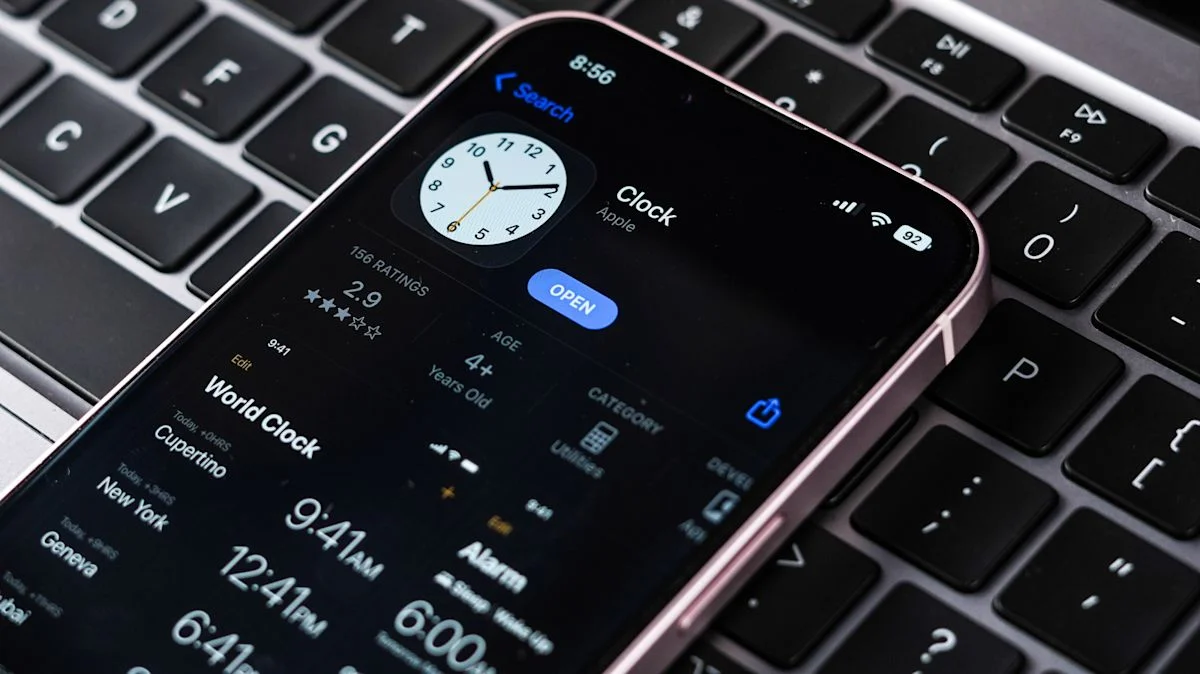
iPhone and iPad users can turn an audio file into a custom alarm tone with GarageBand, then select it in Clock. Import the file from Files, export the GarageBand project as a ringtone, and choose it in an alarm’s Sound settings.
To create the tone, open a Tracks project in GarageBand with Audio Recorder, tap the loop icon, choose Files > Browse items from the Files app, and drag in an audio file. In My Songs, long-press the project, select Share > Ringtone > Export; the tone may keep the default name “My Song.” GarageBand supports audio formats accepted by Files.
In Clock, edit an existing alarm or create one, tap Sound, select the exported tone and save. Users can also choose tracks or playlists downloaded to an Apple Music or iTunes account, or get additional tones from Apple’s Tone Store.
